When and How to Restart Your Modem/Router to Fix Home Internet Problems

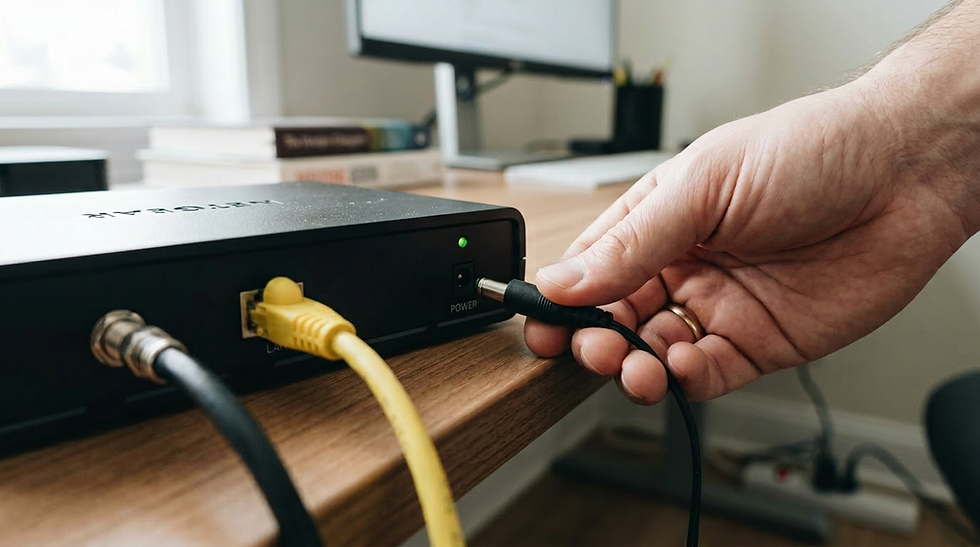
If your home internet is slow, your Wi-Fi keeps disconnecting, or web pages won't load, restarting your modem/router is one of the quickest and easiest solutions. A simple restart can fix many common internet connection problems by refreshing your network equipment and restoring a stable connection.
When Should You Restart Your Modem/Router?
You should restart your modem/router if you experience any of these common issues:
Slow internet speeds
Wi-Fi keeps disconnecting
Web pages won't load
Streaming videos buffer or freeze
Video calls lag or drop
New devices can't connect to your Wi-Fi network
Restarting your modem/router can also help after a power outage, installing a new router, or updating your network settings.
How to Restart Your Modem/Router
Follow these simple steps to restart your home network:
Unplug the power cables from the modem/router.
Wait at least 30 seconds.
Plug the modem/router back in. Wait 2–3 minutes until it reconnects to your internet service. Most of the indicator lights should become steady when it's ready.
Test your internet connection.
Why Restarting Your Modem/Router Works
Over time, network equipment can develop temporary software glitches or communication errors. Restarting clears temporary memory, refreshes the connection to your internet service provider, and allows your modem/router to start with a clean connection.
This simple troubleshooting step often resolves common home network problems without changing any settings.
What to Do If Restarting Doesn't Fix the Problem
If your internet is still not working after restarting your modem/router:
Check that all cables are securely connected.
Move closer to the router to improve your Wi-Fi signal.
Restart your computer, phone, or other connected devices.
Look for service outages from your internet service provider. (You can do a search on the provider's website using your cell phone to find this out)
Contact your internet service provider if your modem/router cannot reconnect to the internet.
Frequently Asked Questions
How often should I restart my modem/router?
Most home networks do not require frequent restarts. Restarting your modem/router every one to three months is usually enough unless you're experiencing connection problems.
Will restarting my modem/router erase my settings?
No. Restarting only powers the devices off and back on. Your Wi-Fi name, password, and other settings will remain the same.
How long does it take to restart a modem/router?
A complete restart usually takes about three to five minutes, depending on your equipment and internet provider.
Final Thoughts
If you're dealing with slow internet, Wi-Fi connection problems, or devices that won't connect, restarting your modem/router should be your first troubleshooting step. It only takes a few minutes and can often restore your home internet connection without the need for technical support.
In case you need a new Modem/Router

Check with you Internet provider to
make sure it is compatible with their system.



Comments