Best Ways to Clear Storage on Android Phones (2026 Guide)”

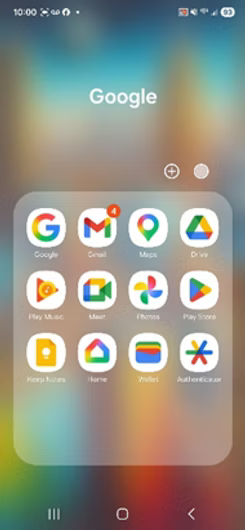


If your Android storage is full and you don’t want to delete photos, you’ve still got several solid ways to free up space without losing anything. You can move photos to the cloud. Android phones can automatically backup to Google Photos, but there are a lot, and I mean a lot of cloud storage apps!
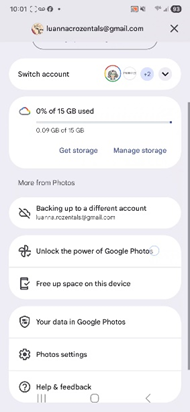
To free up storage using Google Photos you turn on backup. Make sure it has finished backing up everything. Then choose “Free up space”. This will delete local copies of photos from your phone, but keeps them in the cloud. This is probably the biggest space saver without actually “losing” photos on an Android device.
If you take lots of photos you may need to pay for extra space from your cloud provider.

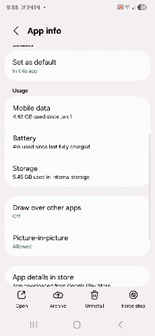

Next thing you could try is to clear the cache (not clearing data). It may look a little different, depending on
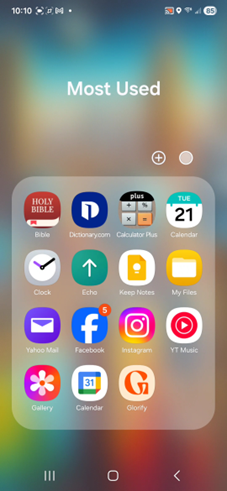
which Android device you have or which version of the Android software you have, but on mine I needed to go to Settings then Apps. You really only need to clear the cache for apps that you use a lot. For me that’s Instagram and Facebook. So you
find the app. Select it that will take you to App info. Go to storage and tap that then tap “Clear cache” at the bottom. Continue to do this for each app that you use a lot.
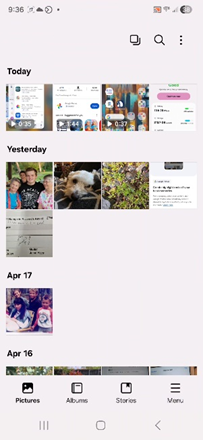
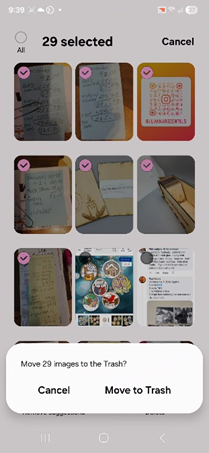
The “Gallery” on Android phones also has an automatic “Clean-out”. To do that click on your “Gallery” app. Go to the three lines “Menu” at the bottom. Tap the “Clean Out” tool. It will show you if you have duplicated photos and show them to you. Click “Delete Duplicates” and all duplicates will be deleted. There will be a message asking you if you are sure you want to move XX number of files to the trash. Confirm that and you just freed up some space.
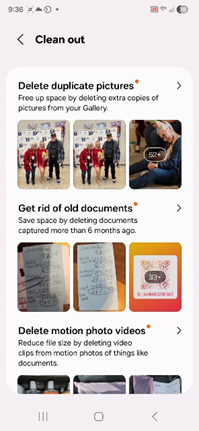

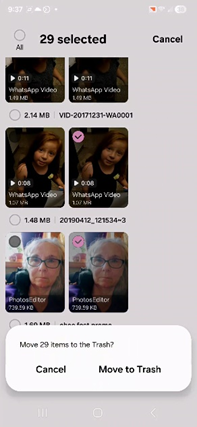
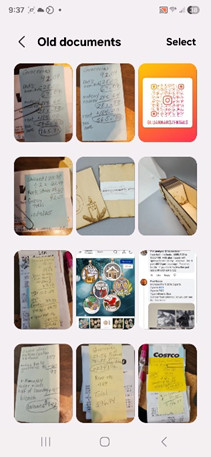
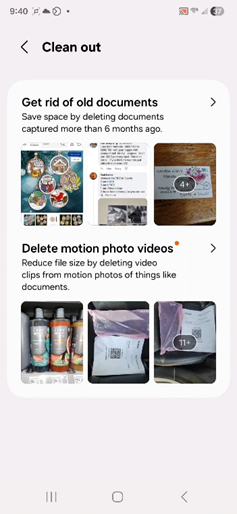
Then you can choose to get rid of “Old Documents”. These are those pics that you take of receipts, products in the store, etc. Select which ones you want to delete. If you are unsure you can click on one to see if it’s something you want to delete. Then click “Select” If there are a lot of them you can tap the circle for “All”. That will select all of the old files. Then you can go back and un check the circle for the ones you want to save. After you’ve made your choices tap the “Trash Can” at the bottom of the screen.
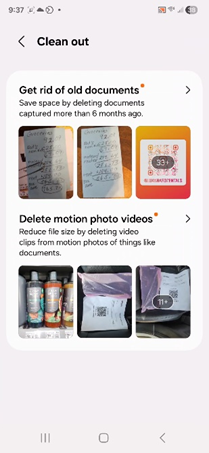
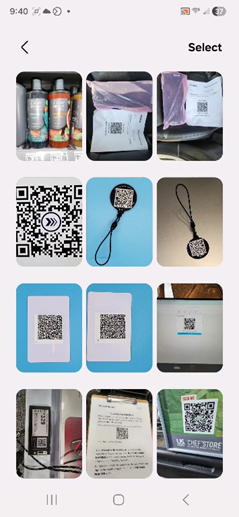
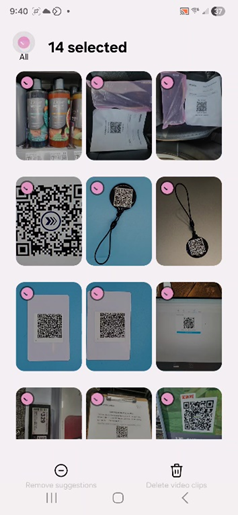
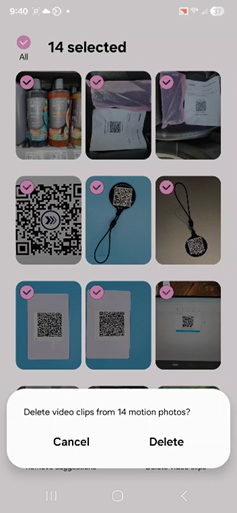
The final option you have in the Clean Out is to get rid of “Motion photo videos” These are
photos that the Android took using the motion setting. It gives you a few frames to choose from for you pic, but they take up quite a bit more space than a single frame photo. Just follow the same procedure to delete the ones you don’t want to keep.
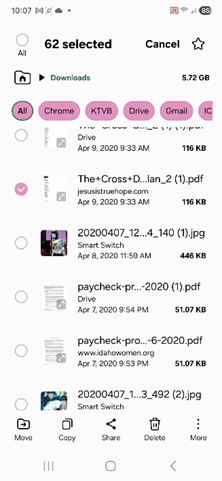
Next clean the “Downloads” folder. Go to your “My Files” folder. Tap on “Downloads”. From here you can choose a certain app that you know you have downloaded quite a few large files or you can just select “All” to go through all of your downloaded files. The number at the right tells you the size of a certain file. If the files size is listed in KB. That’s a small file. Files listed in MB are medium sized files. If it’s listed in GB. That’s a large file that you definitely delete if you are no longer using it. I had a very long list of downloaded files so if yours is like mine it’s going to take some time to go through the entire list. It might be easier to scroll all the way to the bottom because they are in chronological order. Chances are that the oldest ones are no longer going to be needed. Just click the three dots at the top right corner and choose “Select” Then go through the list and put a check mark to the left of the ones you want to delete. When you’ve gone through the list entirely just tap the trash can.
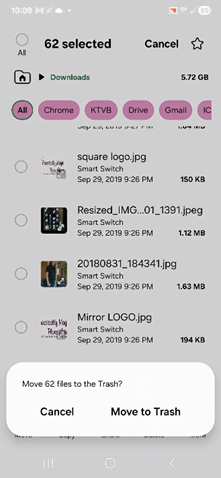
Don’t forget to empty the trash. Until you do those files are still taking up space. (At least for another 30 days until they are automatically deleted.) To empty the trash on most Androids you open the Files by Google app, tap the menu (three lines) in the top left, select Trash, and choose to delete files permanently. On Samsung devices, use the My Files app, tap on “Internal Storage” then three dots at the top again. Find “Trash” . You can click “Select” and choose to remove only some of the files by putting a checkmark to the left of them or click the three dots again and choose “Empty”. You will be asked if you want to “Permanently delete X number of files? Then just click “Delete”
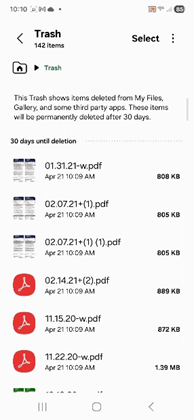
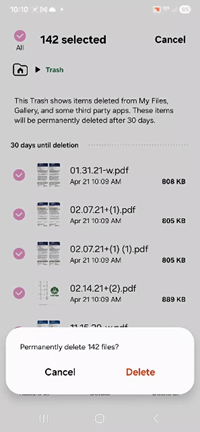
Here is a quick Strategy for freeing space without deleting photos/videos.
Back up with Google Photos
Use “Free up space”
Clear app caches
Clean Downloads folder
If you are really low on space “Empty” the trash
There is one other method for Android users (especially those who do not like using cloud storage). If you have a computer you can attach your phone to the computer with a USB C cable. Then copy all the files from your phone to your computer. When I do this I make a folder on my hard drive named accordingly and copy over the files I want to save. Then you can freely delete them from your phone. At least you will have a backup copy of them if something happens.
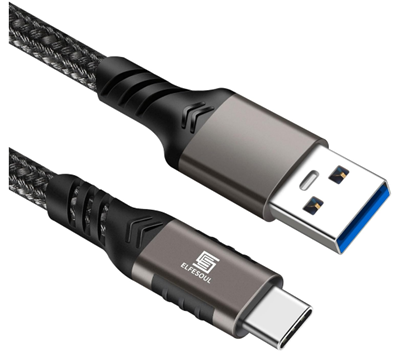
Note: Your computer may not have a USB C port so you may need a cable that has a male USB C end for attaching to your phone and the other end would need to be a male USB A end to attach to the computer.
Warning: If you decide to share that photo with a friend that you took on your phone, you won’t have the option to do that if you deleted it from your device so be selective about which ones you want to delete.



Comments