How to Share Digital Photos Without Losing Quality - Android and Windows

Sharing Photos
Sharing photos has become a necessity in today’s digital world. It can be somewhat frustrating if you don’t know the ins and outs of photo sharing so here is my guide to help you.
Google photo sharing
Using Google Photos on your phone or computer:
📱 On Mobile (Android or iPhone)
Method 1: Share specific photos
Open the Google Photos app.

Tap and hold a photo to select it.

Tap additional photos if you want to share more.
Tap the Share icon (usually looks like three dots connected or an arrow).
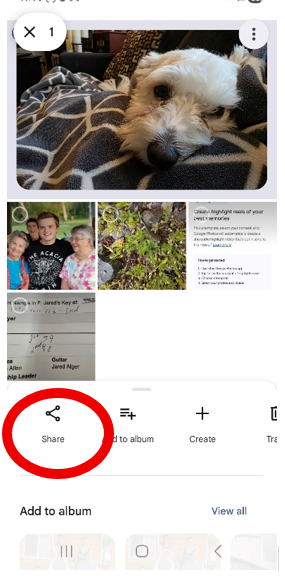
Choose how you want to share:

Select a contact (if they use Google Photos)
Or choose another app (Messages, Gmail, etc.)
Tap Send.
Method 2: Create a shared album
Open Google Photos.
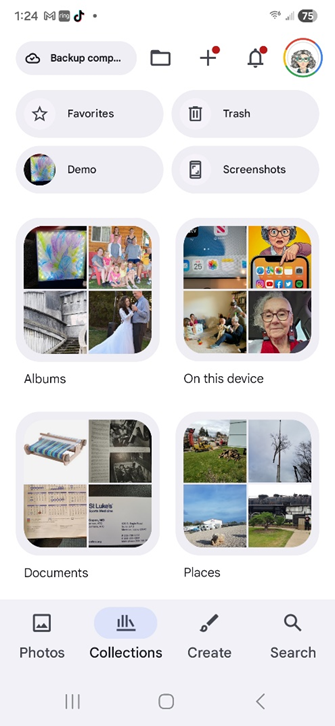
Tap Collections → Albums → New album.


Add a title and select photos.

Tap Share.

Choose people or copy a sharing link.

Send the link or invite others.
💻 On Computer (Web Browser)
Go to photos.google.com and sign in.

Hover over a photo and click the checkmark to select it.
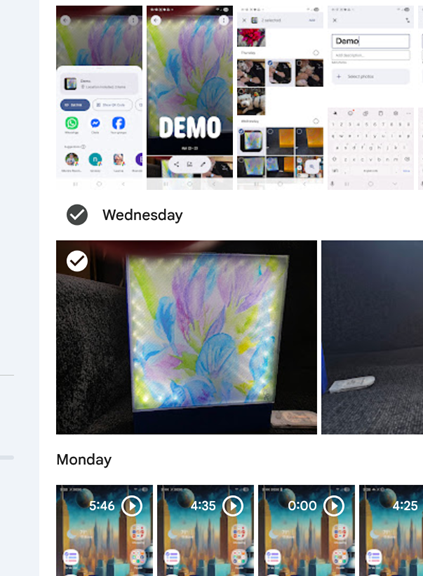
Select multiple photos if needed.
Click the Share icon (top right).

Choose:
A contact
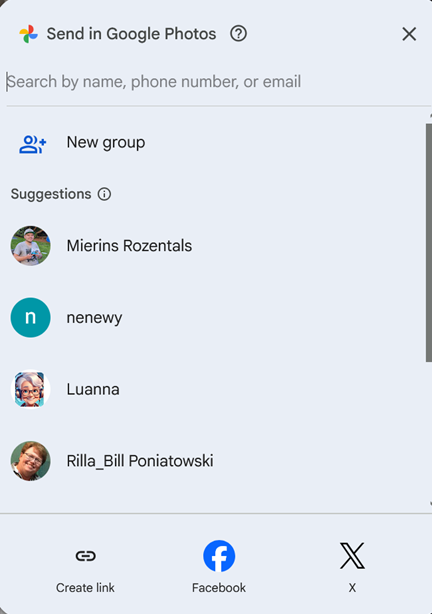
Or click Create link to generate a shareable URL
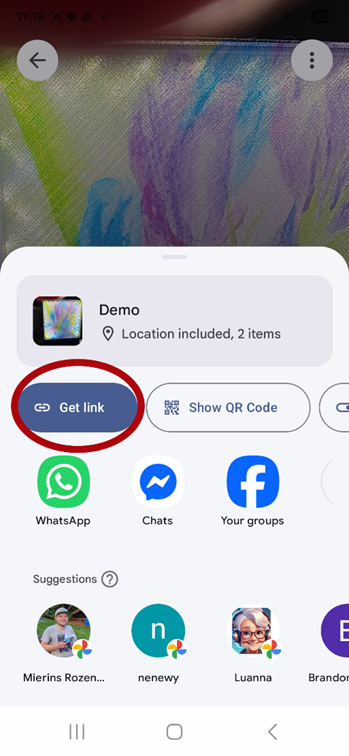
Send the link or email directly.
🔗 Sharing Tips
Link sharing lets anyone with the link view the photos (you can turn this off later).
You can manage shared items under the Sharing tab.
Recipients don’t always need a Google account if you send a link.
Sharing photos using text messaging (SMS/MMS )
🤖 On Android (using Messages)
Open your messaging app (commonly Google Messages)
Tap Start chat or + or Select an existing chat
Enter the contact’s name or number
Tap the attach icon (paperclip or +)
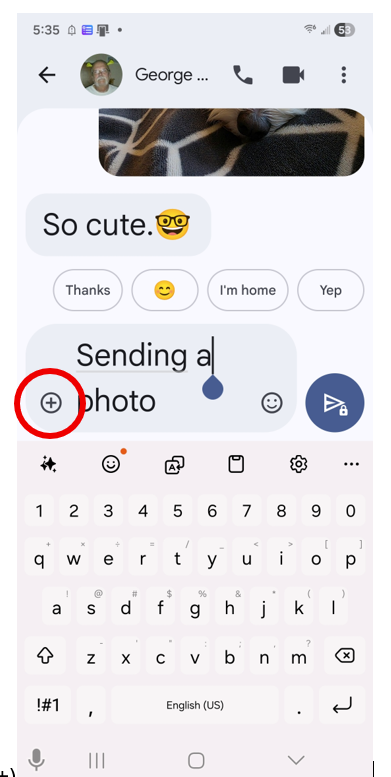
Choose Gallery or Photos

Select the photo(s) you want to send

Write a caption if you choose and Tap Send

📸 Tips for Sending Photos via Text
Image quality may be reduced when sent via MMS
You may have a size limit (usually a few MB per message)
If photos won’t send, check your mobile data or Wi-Fi connection



Comments